
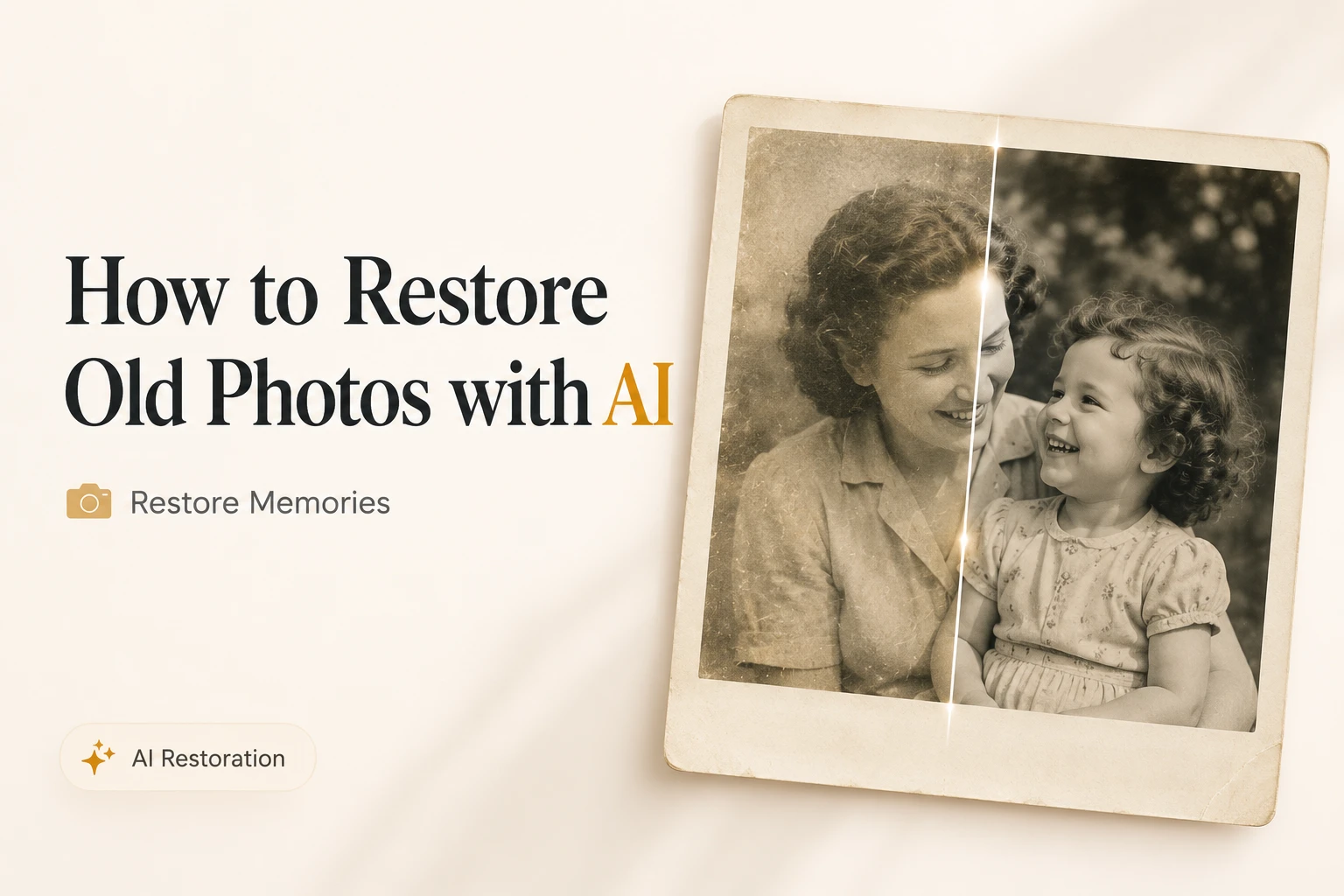
Old photographs carry memories that can’t be recreated — but time is not kind to them. Fading, grain, loss of sharpness, and low resolution from early digital cameras or film scans make many cherished photos difficult to display or print today. AI has made it possible to do restore old photos AI free in seconds, directly in your browser, without any photo editing skills or expensive restoration services.
What Happens to Photos Over Time
Whether you’re working with scanned film prints, early digital photos from the 2000s, or images saved at low quality, the problems are predictable:
- Loss of sharpness — film scans lose detail in the digitization process; early digital cameras had very low megapixel counts
- Grain and noise — film grain in older photos, or digital noise from high ISO settings in low-light conditions
- Fading and color loss — physical prints lose color saturation and vibrancy over decades
- Low resolution — photos that looked fine on a small screen from ten years ago now look pixelated on modern displays
- Compression artifacts — old digital files saved at low quality show blocky, blurry areas that worsen over time
- Blur from scanning — even careful scanning introduces some softness compared to the original print
How AI Restoration Works
Traditional approaches to old photo restoration involved manual retouching in Photoshop — painstaking work that required significant skill and hours of effort. Even then, results depended entirely on the editor’s ability to guess what the original should look like.
AI restoration takes a completely different approach. The model has been trained on millions of image pairs — degraded versions alongside their high-quality originals — and has learned to recognize the patterns of aging, grain, compression, and blur. When you upload an old photo, the AI doesn’t guess — it reconstructs based on what it has learned about how images should look. The result is a naturally sharp, detailed image rather than one that looks manually edited.
Phototune.ai’s Old Photo mode is specifically trained for aged and degraded images, applying restoration and upscaling simultaneously to bring old photos up to modern display and print standards.
What AI Can Restore — and What to Expect
| Old Photo Problem | What AI Does | Expected Result |
| Low resolution / pixelation | Upscales with AI detail reconstruction | Sharp, print-ready image |
| Film grain and digital noise | Removes noise while preserving real texture | Clean, natural result |
| Soft or blurry detail | Reconstructs fine texture and edge sharpness | Naturally crisp result |
| Faded, muted colors | Restores color depth and natural vibrancy | More vivid, balanced tones |
| Compression artifacts | Reduces blocky areas from low-quality saves | Cleaner, artifact-free image |
| Faces lacking detail | Portrait-aware reconstruction of facial features | Sharper, more defined faces |
Step-by-Step: Restore an Old Photo Online
Step 1: Go to Phototune.ai and open the AI image enhancer. No account required — the tool works in any browser on desktop or mobile, completely free.
Step 2: Upload your old photo. Drag and drop the file or click to browse. JPG, PNG, WEBP, and AVIF are supported up to 10MB. If you’re starting from a physical print, scan it first — the higher the scan resolution, the better the AI result.
Step 3: Select Old Photo mode from the Enhance Mode options. This activates the restoration model trained specifically on aged and degraded images.
Step 4: Choose your upscale level. For a photo that’s reasonably sized but just needs restoration, 2x is a good starting point. For a small scan or early digital photo, 4x will bring it up to a resolution suitable for printing or modern displays.
Step 5: The AI processes the image automatically in seconds — noise reduction, sharpening, detail reconstruction, and upscaling happen simultaneously.
Step 6: Compare the result using the before/after preview. Pay attention to faces, fine textures, and background detail. Download when satisfied.
Tips for Scanning Old Prints
The quality of your scan directly affects how well the AI can restore the photo. A few practices make a significant difference:
- Scan at minimum 600 DPI for standard 4×6 inch prints — 1200 DPI or higher gives the AI significantly more detail to work with
- Clean the scanner glass before scanning — dust or smudges on the glass will appear in the scan and may be interpreted as photo damage
- Save the scan as PNG or high-quality JPG — avoid heavy compression before the AI processes the file
- If the print is damaged with tears or water damage, the AI will still improve overall sharpness and detail — though physical damage will remain visible to some degree
Who Benefits Most
Families preserving memories: decades-old prints from family albums can be brought up to modern display and print standards — suitable for framing, digital albums, or sharing with relatives.
Photographers and archivists: historical or archive photos that were captured at low resolution or scanned from deteriorating originals can be improved significantly for publication or exhibition.
Content creators and bloggers: old reference images or historical photos used in articles can be improved enough for web publication without sourcing new licensed photos.
E-commerce sellers with older product images: product photos from previous years that no longer meet resolution requirements can be upscaled and restored without a new photoshoot.
Try Phototune.ai’s free old photo restoration online tool — upload your old photo, select Old Photo mode, choose your upscale level, and download a restored, sharper version in seconds. No account, no software, no cost.
Facebook comments